Blog

  • Windows 8 Warning!

    Please do not download and run the Windows 8 Consumer Preview unless you know what you are doing.

    I have spoken to two people this morning who have killed their PCs by attempting to do this. Now, they need to re-install everything. I don’t have to tell you what a giant headache they are facing.

    You might ask, “Can I uninstall Windows 8?”

    Answer: NO. You will have to reload from a backup or system image. If you do not know how to perform a system image step or a full backup, do not download and install Windows 8.

    To help you, we are working on our Windows 8 preview and will have more information tonight or tomorrow.

    In the mean time, hold off a day or three before you jump into DIY mode and try to manage it alone. After all, who wants to spend the next three days in recovery?

  • Latest Scam: Live Chat Window While Banking Online

    Trusteer announced yesterday that a new online scam called “Shylock” is being carried out on those with commercial or business banking accounts. Here’s what happens:

    You log into your regular business or commercial bank account and it seems to take a long time. It notifies you that a security  session is underway.

    You will see a message that looks like this:

    The system couldn’t identify your PC

                You will be contacted by a representative of bank to confirm your personality.

                Please pass the process of additional verification otherwise your account will be locked.

               Sorry for any inconvenience, we are carrying about security of our clients.


    Then, a live chat window then opens. A person posing as a bank representative will ask you to verify your username and password, and possibly other information, such as verifying a transaction.

    While the chat session is open, the crook is transferring your money into his account. He will tell you to log out and log back in in a few minutes; when you do, all of your money is gone.

    This scam works because your computer has previously been infected with a code that waits for you to sign onto your bank, and then masquerades as your bank. If you are getting strange pop ups or if your home page on your browser has changed you may be infected with this or some other malware.

    If in doubt about a strange banking session, or if you experience strange pop-up messages, or if your home page has changed and you did not change it, then you may have a problem. immediately close your browser window and call us right away. We can help determine what is going on, and clean up any malware on your computer.

    By the way, this malware is called Shylock because the hacker who wrote the code embedded lines from Shakespeare’s Merchant of Venice. We don’t usually see such bad behavior from English majors!

  • Your Privacy on Google

    In our last blog post, we talked about Google’s new terms of service (“TOS,” going into effect March 1, 2012) and what they mean to you.  This week we explain how you can protect your privacy on Google.

    First Option: Avoid looking directly into the monster’s eyes. That means close your Gmail and YouTube accounts, and use Google search or YouTube without signing in.  You can use both of these without having an account; your searches will be recorded and saved for 18 months, but they will not be attached to an account and therefore not directly matched to you. Or, if you use different browsers (Firefox for Gmail, Internet Explorer for You Tube, etc.) then Google will not be able to collect all of your search data to incorporate into their directed ads.

    If you have an Android phone, then you have less room to maneuver. There is no opt-out choice for your phone usage. There is, however, a way to keep tracking to a minimum. Back up your phone data and perform a “hard reset.” This process varies by phone model; but basically you want to return your phone to its factory state. On restart (it will look just like it did when you first got it), follow the set-up process but do not add a Google email address. It will be more difficult to make apps work for the phone, and you’ll have to get them from Amazon.com, or someone other than the Android App Store. To send and receive email from your phone, use K9Mail or the phone’s default email program.

    The biggest difference between the old TOS to the new one is that Google will now be tracking your web surfing history and storing it forever. But, if you would still like to continue using your Gmail and YouTube accounts as they are, you can overcome much of this by following the steps below.

    1. Sign in to your Google account (I.e., Gmail or YouTube) and go to www.google.com/history. You should see something like this:
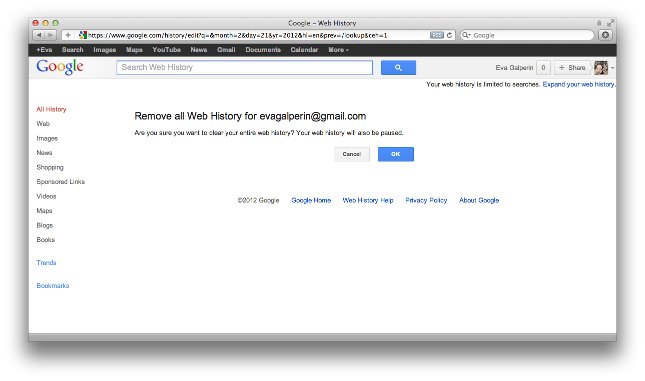
    2. Click the “remove all web history” button; then click OK.
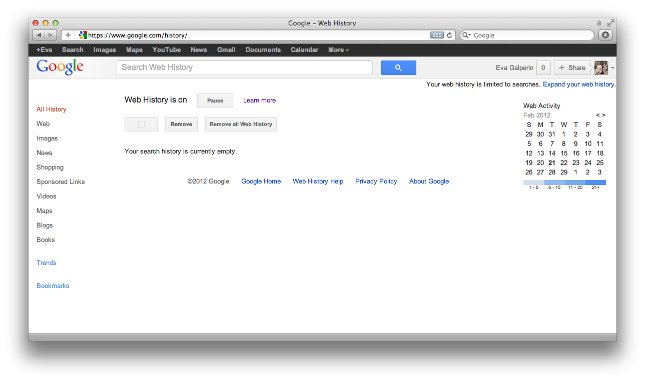
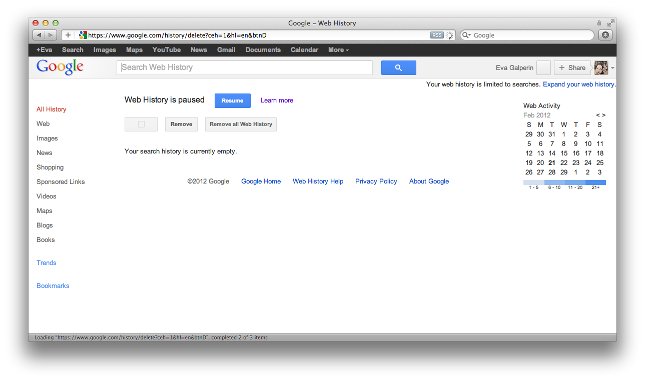
    You should now see something like the following. When you see “Web History is paused,” you have been successful.
    Now keep in mind that this means that until you turn this back on you will not receive specialized or local search returns, and Google will still collect data about where you go online. They will house this more stripped-down data for 18 months, after which they promise to stop keeping it. If you do not opt out of Web History, then Google will keep all of your search history, forever tied to your Google account. When your grandchildren are researching their family tree, they’ll probably have a way to learn that you’ve spent lots of time searching for “recipes using Tabasco,” “dog breeds that don’t shed,” and “winning lotto numbers.”

    Important: I recommend opting out of Web History now, and then again after you have agreed to the new TOS on March 1, 2012. This will clean your search history before the new TOS goes into effect so that all of your data will not auto-upload and be tied to your Google account.

    In my view, this is a good first step; but I recommend doing more.

    Disable the DoubleClick Cookie

    DoubleClick, a Google subsidiary and a very large digital tracking company for Google’s online advertising, will let you opt out of its “cookie” (the little software programs that it plants on your computer to help mark your internet use). To do so, follow these steps

    1. Still logged into your Google account, go to www.google.com/settings/ads/preferences. On the left hand side you will see “Ads on Search. Beneath this you’ll find “Opt Out.”

    2. Click “opt out” and then click the “Opt Out” button.

    Disabling this DoubleClick cookie removes personalized ads and means that Google will collect only generic information, holding it for 18 months.

    Install a Preventive Plug-In

    One last measure you can take is to install the “Advertising Cookie Opt-out Plugin.”  This is a tool that’s available for Firefox, Internet Explorer and Google Chrome browsers. For help and instruction on how to add this to your browser click here: http://www.google.com/ads/preferences/plugin/browsers.html#ieff.

    It is a simple, fast download that will keep DoubleClick at bay. Paste the link above into your browser of choice and follow the directions.

    “Google Paranoia” Is Optional

    I must admit that I am a heavy Google user. I use Gmail every day; Google Chrome is my favorite browser; I have an Android phone that’s never more than two feet away; and I am writing this post in Google Docs right now. I love having all of my accounts under one roof and I do not mind Google following me around to and serve me personalized advertising.  (I never see ads anyway, even on Yahoo or MSN which are littered with advertising and pop-ups. This is because I’ve installed Adblock on my browser. I was quite surprised the first time I looked at Facebook on some else’s computer. It was shocking to see so many ads, and I prefer not to deal with them.)

    In my opinion as a user, Google is doing something useful that I can appreciate. I like the idea of having all of my Google utilities integrated and at my fingertips, and I appreciate having to use only one password. But you may disagree; everyone has their own personal comfort level. Keep in mind, however, that even with evasive measures that stop Google from serving you personalized ads, you will not have stopped Amazon or MSN from tracking you and your searches, and you will not have prevented Google from tracking you. You’ve only kept your search results from being tied to your account forever.

    Our next post will come after March 1, so we’ll be able to see how things have been working. Good luck, and feel free to comment or call between now and then if you have any questions or concerns.


  • What Google’s new Terms of Service mean to you.

    In just over a week (March 1, 2012), Google will require all users to agree to their new Terms of Service (“TOS”) in order to continue to use Google products.

    If you use Google’s search engine and none of their other services, you will not have to do anything. If you use Gmail, Google Docs, or any of Google’s other line, you will be required to agree to the new terms. There is no opt-out option.

    Why is Google doing this? Google products and services, such as Gmail and Google Analytics, number over 60 right now and they all have a different TOS. Google wants to simplify the conditions under which they offer all of these products by combining and consolidating the different policies into one. This will allow them to pursue future business objectives using a clean slate, legally.

    This would also allow Google to put all of your products under one roof. If you are using Gmail, Docs and YouTube, you will now have one user name and password for all of them, and Google says it can thereby provide a more uniform user experience. It also makes it easier for Google to inform itself about your habits across all of these services, and to use its massive computing capabilities to discover marketing potential for additional Google advertising services and products.

    One TOS to rule them all.

    You can see the newest version here. Its language is simple and not cluttered with much legal jargon.

    The important stuff: On the new TOS, click the Privacy Policy tab at the top of the page. There you can read exactly what information Google collects and what they do with it. I have read the TOS, both old and new, and I like the new one. But some people do not.

    Skeptics worry that Google should not be in a position to know everything they are doing online. But the internet is already more public than you might think. No matter which browser you use, websites know what time you visited, your IP Address, what site you came from and what site you go to when you leave their site (although some of that may become less easily known soon, to most companies except Google). Websites also log all of the pages on their site that you visit, and how long you looked at each page.

    Part of the reason for collecting visitor information is to provide security. One way to track an unauthorized intrusion is to capture visitors’ internet protocol (“IP”) addresses. But let’s be realistic; another huge reason to collect this information is to use it for marketing purposes.

    Back to the skeptics: They realize many sites track this information, but are concerned that Google can collect the information for all sites. Sensitive to this criticism, Google spells out how you can opt out of most of the data collection services that they use. From your Google Dashboard you can set all of your Privacy Settings and control the amount of information that is collected and stored by Google. This will ensure that you are not sharing too much personal information.  They will still collect basic information from your use.

    Keep in mind that Google is an advertising company. They make the vast majority of their money selling ads. (Or as a marketing person might explain, their business is selling audiences to advertisers. The more they know about their audiences, the more they can charge for their ads.) All of the products and services Google provides to you for free, is a method of delivering the ads to you. If you have used Google to search for men’s shoes and then you went back a few days later and searched for camping equipment, you will also see ads for men’s shoes. They use what you search for, to determine what ads to serve you. Every time you search, you provide Google with more information about your interests, and Google can “sell” you to more advertisers. More and different ads show up alongside your searches, based on the collection of this data.

    Google’s reach is not limited to search alone. For example, if you have an Android phone, you have the option to set it up using your Gmail account. This gives even more information to Google. Some users find the interconnectedness of it helpful (as I do, because it saves me time and effort). Others are wary. Where do you fall on that spectrum?

    If you accept that advertising is part of the modern world, and if you’re not afraid of Google seeing where you go and what you do, then Google’s new TOS puts them in a position to offer you a lot of efficiency through coordinated products and services. If you have concerns, then you can limit them by managing your privacy settings or by using a browser and email service that is not part of Google. But note, every company has terms that give it special advantages, and Yahoo and Bing do pretty much the very same things that Google does, so choose wisely.

    Our next post will cover setting up Google privacy options so that the data they collect is very generic and not personal.

  • Apple announces OS X Mountain Lion

    Yesterday Apple announced the newest version of their operation system, OS X Mountain Lion.  We have included a link here to the features page on Apples site. Two of the new features that everyone is talking about, Messages and Gatekeeper seem to be very good things.

    Messages allows you to send messages to any one on iOS or OS X. That means free messaging for iPads, iPhones, or iPods running iOS 5 and Macs and Mac Airs for free. Some people will get to stop paying extra for text messages.

    Gatekeeper is a tool to help keep your Mac nice and safe.  It comes with three levels of security so you can decide how safe you want to be or another way to make sure that you don’t download harmful things from the internet.

    Click the link about to see some of the new features.  I have been enjoying Lion  my Mac Book and I am looking forward to the updates.

  • What is Malware?

    It stands for Malicious Software. Unwanted software that once installed on your computer can take it over and make it unusable by you, but in the meantime it can gain access to your data, take advantage of your hard drive to store files or use your computer and your internet to attack other websites.

    Microsoft reported in May of 2011 that 1 in every 14 downloads could contain some type of Malware. Other companies have reported that a lot of malware originates in China. Shaoxing China was named the malware capital of the world in 2010.

    The basic method of infection is first, a web site or the server that is hosting the site, is “hacked” or compromised. The machine now has code installed that if it sees certain things when people surf the site, it passes the code to the passer by. If you visit the site, open a certain email, click a movie or link to the latest Kardashian story and your PC is not up to date, your anti-virus is not very good or the code on the site is very fresh, you may “catch” it and get infected.

    Now the code is on your computer and infections behave in all sorts of ways! Lately we’re seeing Pay-Ware, it gives you pop-up warnings of impending doom and asks for you to pay $79.00 and they will “save” your PC. Of course once they have your credit card number and your vital information they can run up the card or sit on it and collect the data and use it later when you no longer expect it. And by the way, your PC is still infected. Paying the 79.00 fee does not remove the infection.

    While this is popping up on your screen every 6 minutes, the malware is hiding itself by using a Rootkit. A rootkit will hide the malware form your protections. Most malware if found or damaged can reinstall on startup, it looks for the correct files and if it does not find them it reinstalls them. There is also in most malware programs a backdoor. This will bypass the normal security systems and allow for remote access to your PC.

    If your home page changes, if you start seeing automatic scanning with reported errors, you have some form of Malware. The first thing to do it disconnect the computer from the internet, power it off and take it in to a professional, make notes for the technician about site history (where you may have encountered the infection), and the resulting behavior. Call us, we can remove the Rootkit and the malware and get up back up and running.