Category: Articles

  • IC3 Safety Tips for Smartphones

    Friday afternoon the IC3 (The Internet Crime Complaint Center), a task force made up of the FBI, the National Whitre Collar Crime Center and the Bureau of Justice Assistance released some helpful safety tips for all smartphone users. They were in particular talking about certain mal-ware programs out there for the smartphone market that will access your contacts, or emails, turn on Geo-location, or access your Wallet or in the case of the iPhone your Passport.

    I wanted to pass along this list because it is really important that since your smartphone is connected to the internet all of the time you should protect yourself.

    When purchasing a Smartphone, know the features of the device, including the default settings. Turn off features of the device not needed to minimize the attack surface of the device.

    Depending on the type of phone, the operating system may have encryption available. This can be used to protect the user’s personal data in the case of loss or theft.

    With the growth of the application market for mobile devices, users should look at the reviews of the developer/company who published the application.

    Review and understand the permissions you are giving when you download applications.

    Passcode protect your mobile device. This is the first layer of physical security to protect the contents of the device. In conjunction with the passcode, enable the screen lock feature after a few minutes of inactivity.

    Obtain malware protection for your mobile device. Look for applications that specialize in antivirus or file integrity that helps protect your device from rogue applications and malware.

    Be aware of applications that enable Geo-location. The application will track the user’s location anywhere. This application can be used for marketing, but can be used by malicious actors raising concerns of assisting a possible stalker and/or burglaries.

    Jailbreak or rooting is used to remove certain restrictions imposed by the device manufacturer or cell phone carrier. This allows the user nearly unregulated control over what programs can be installed and how the device can be used. However, this procedure often involves exploiting significant security vulnerabilities and increases the attack surface of the device. Anytime a user, application or service runs in “unrestricted” or “system” level within an operation system, it allows any compromise to take full control of the device.

    Do not allow your device to connect to unknown wireless networks. These networks could be rogue access points that capture information passed between your device and a legitimate server.

    If you decide to sell your device or trade it in, make sure you wipe the device (reset it to factory default) to avoid leaving personal data on the device.

    Smartphones require updates to run applications and firmware. If users neglect this it increases the risk of having their device hacked or compromised.

    Avoid clicking on or otherwise downloading software or links from unknown sources.
    Use the same precautions on your mobile phone as you would on your computer when using the Internet.

  • Follow up to Apple, FBI and the missing UDID Numbers

    So today NBC is reporting that the Apple UDIDs that were stolen last week did in fat not come from the FBI as the hackers had claimed.  Seems they came from an app publisher in Florida.  They said that after reviewing the posted UDID numbers they can confirm that these are numbers that they had been collecting from the apps that they publish.  Apple asked developers last year to stop collecting UDIDs and the company in Florida, Blue Toad, did as requested and stopped collecting these identifier numbers.

    Since the numbers came from one publisher they will not have all of your passwords and other information that could lead to identity fraud.


  • More JAVA Information.

    JAVA Updates

    First: If you go to JAVA.com and click the big red button and download and install the newest update you will block the malware exploit that has infected many computers.

    Second: Are you free and safe? Not so fast. While it has been verified by leading security experts that the newest version of the software does stop the JAVA exploit from executing, you are not out of the woods yet. By making the fast repairs they may have opened a new hole that experts are saying could cause a problem. Read the whole story here.http://www.informationweek.com/security/vulnerabilities/oracle-emergency-java-patch-opens-fresh/240006756

    Third: How does this work? In this malware case, it is being spread with a Fake Microsoft or QuickBooks or Outlook email. Microsoft has sent out real emails with the new terms of service agreement and They have copied the email and replaced the real Microsoft Links with links to the infected servers that then takes advantage of JAVA in your browser to access your computer.  The same with QuickBooks, the email will say that there is an immediate update for QuickBooks and when you click to install it you get infected.

    Fourth: If you are running a WordPress blog or web site you may need to see if your WordPress files are hosting the Blackhole toolkit that could be infecting visitors. Click here to do this: http://sitecheck.sucuri.net/scanner/

    Fifth: What should you do? Disable JAVA in your browser. I would not remove JAVA from your computer. You may have programs that run on JAVA and it would also disable those programs if you remove JAVA. Just disable it in your browser Here is how:

    In Firefox: Press Firefox button -> Add-ons, go to Plugins and click the “Disable” button next to anything named “Java”.

    In Chrome: Type in: “chrome://plugins/” into the address bar (no speech marks). Scroll down to Java and click disable.

    In Opera: Type in “opera:plugins” into the address bar (no speech marks). Scroll down to:

    In Internet Explorer: Tools (Menu/Drop Down Menu From Top) > Internet Options > Programs > Manage Addons > Java Plugin > Disable > “OK”  Close your browser and restart.

    For Mac users:

    System Wide: Click Go and Applications then Utilities then Java Preferences. Make sure your 64 or 32 versions are 1.6.0, if they are you are ok, if they are 1.7 you should make sure they are disabled. Make sure the box at the top of the page is un-ticked.  Then on the Advanced tab make sure the Do not start Console bullet is ticked.

    Safari: Click Preferences, and then the Security tab (uncheck “Enable Java”).

    Google Chrome: Open Preferences, and then type “Java” in the search box. Scroll down to the Plug-ins section, and click the link that says “Disable individual plug-ins.” If you have Java installed, you should see a “disable” link underneath its listing.

    Firefox: Click Tools, Add-ons, and disable the Java plugin(s).

  • JAVA Update from last week

    Oracle has posted an update for JAVA, please go to www.java.com and get the new update to keep you safe.

  • Disable JAVA to be safe online.

    A new JAVA exploit is spreading around the internet and causing major headaches. To help keep you safe online you should disable JAVA in your wen browser.  Here are instructions based on browser type.

    In Firefox: Press Firefox button -> Add-ons, go to Plugins and click the “Disable” button next to anything named “Java”.

    In Chrome: Type in: “chrome://plugins/” into the address bar (no speech marks). Scroll down to Java and click disable.

    In Opera: Type in “opera:plugins” into the address bar (no speech marks). Scroll down to:

    In Internet Explorer: Tools (Menu/Drop Down Menu From Top) > Internet Options > Programs > Manage Addons > Java Plugin > Disable > “OK”  Close your browser and restart.

    For Mac users:

    System Wide: Click Go and Applications then Utilities then Java Preferences. Make sure your 64 or 32 versions are 1.6.0, if they are you are ok, if they are 1.7 you should make sure they are disabled. Make sure the box at the top of the page is un-ticked.  Then on the Advanced tab make sure the Do not start Console bullet is ticked.

    Safari: Click Preferences, and then the Security tab (uncheck “Enable Java”).

    Google Chrome: Open Preferences, and then type “Java” in the search box. Scroll down to the Plug-ins section, and click the link that says “Disable individual plug-ins.” If you have Java installed, you should see a “disable” link underneath its listing.

    Firefox: Click Tools, Add-ons, and disable the Java plugin(s).

  • Vacationing with Your Technology


    Summer vacation may be fun for you, but it can be hard on your tech gadgets. I can’t tell you how many calls I get each summer about cell phones dropped into the pool or — this one just last week – an iPhone, wrapped in a hotel towel and buried in the sand near a resort, along with a room key. When my customer came back from a dip in the ocean, the towel and the key were still there, but his brand new iPhone was gone.

    I have lost count of the number times I have dried out someone’s smart phone or laptop.

    The best advice I can give you, for most vacations, is to leave your essential gear at home and enjoy your vacation instead of worrying about your tech gear.

    However, if you must take your tech along, there are a few things you can do before you take off to make protect yourself.

    First, backup. Make a complete backup of everything on your phone, laptop or tablet.  I will say this again: Back it up. If your item is lost, stolen or damaged, you can replace it; but you can never replace the stuff on it.

    Next, Prey. Prey is an anti-theft website that can help you track your phone, laptop or tablet for free, if it is ever stolen or lost.  The service is easy to use and if you can track up to three items at no cost. There are cases of Prey users who were able to get pictures and the address of the person using their stolen equipment, and in such cases the police are able to make an arrest and retrieve your stuff.

    Then, make a list. Take pictures of your tech items including their serial numbers, and keep them, together with a list, in a free online storage account (such as DropBox) so you can access it anywhere.  I carry several items when traveling so having the list of serial numbers, identifying marks, and pictures gives me a fighting chance for recovery. Also, if you can safely remove the back of the item and scratch your name, cell number and “REWARD,” it can’t hurt.

    In the bag. Get one right-sized bag for carrying all the cords and tech gear you need so that they are in one place and you can find everything quickly. When you use a power cord to charge your phone, make sure it goes back in the bag after afterward so that it is not left behind. (Just for fun, ask a hotel concierge someday how many phone charger cords have been left by guests. He’ll show you a trunkful.)

    Avoid putting cameras and phones in outside pockets of bags, yes they are easy for you to get to but also easy for someone else to grab from outside pocket as well.

    Data Security on the Road

    Smart Wi-Fi. Taking your laptop on vacation? Need to check email while away? Be careful where you access the internet what you do while connected. Not only is your laptop more likely to be stolen on vacation, your bank account information and email are easily cracked in the places vacationers tend to use.

    One of the most dangerous things you can do, whether on vacation or in your home town, is to log into your bank account from a public Wi-Fi area. We all love going to a coffee shop to check our email or get Facebook updates, but this is how you open yourself to exposure and possible identity theft. Someone in the coffee shop, or sitting outside in a car, may be waiting to grab your username and password, and you’re unlikely to notice them.

    If you need to get email or check your bank account, do it from within your hotel room, using the wired (plugged) connection provided there. It’s a good idea to keep a couple of six-foot Ethernet cables in your laptop bag for just such occasions. Not every hotel will have Ethernet cables available to borrow.

    If you must use a wireless connection, it is better to do banking or check email from your smartphone using your wireless carrier’s data plan. Turn off the Wi-Fi on your device and instead connect via your built-in carrier. This isn’t perfect protection, but at least this signal has some chance of being more secure. Keep in mind you may pay extra fees for doing this depending, on the terms of your data plan and where you are traveling.

    H2-Uh-Oh

    Beach? Lake? Remember that water and sand will kill electronics, and salt water will give them a particularly nasty death. Sand that gets into the space around your home button on your “I” devices may never come out; sand in your power connector can cause your device to malfunction and even short out. Too much direct sunlight can force iPads to overheat and shut down. I recommend you take a book; but if you must take your electronic device to the beach, you may want to try some of the products listed below.

    DryCase is available for almost all devices, and it is waterproof-certified to 100 feet.  This is simple, great protection.

    ChefSleeve is intended to protect iPads from messy cooks in busy kitchens, but it can keep your screen safe from other kinds of splashing as well.

    Food Storage Bag. In a pinch, get quick protection from a low-tech, one-gallon Ziploc™ bag. Be aware, this can have negative effects on your equipment so make sure drop in a desiccant packet. (It’s a good idea to keep these handy; collect them from your consumer and technology purchases.)  Keep a bagged device out of direct sunlight as condensation will form in the bag and, as you know, moisture can damage your device. If you don’t have desiccant packets, turn your device off, wrap it in a paper towel, put it in the plastic bag, and hide it in a shady area. Check it periodically to make sure the towel is not damp (i.e., no water has developed inside the bag).

    Worst Case Scenario

    If you drop your phone or tablet in the water, turn it off; or if it is off, do not try to turn it back on. If possible, remove the back and take out the battery; then put the phone into a bowl of uncooked rice (an effective natural absorbent) right away. Take the phone apart – as far as you can without using a screw driver. Usually this means taking off the back and the battery. Normally, you can dry the battery with a towel and it should be okay; but the phone (or other device) needs to be surrounded by rice for three to four days before you put the battery back in and try to start it up.

    Do not use a blow dryer or heat gun to try to dry out your gear, the heat can cause damage to your devices.

    If you drop your device in the sand, get a can of compressed air for electronics (available at any office supply store and many drug stores) and blow out all of the open ports on your device before you try to plug it in.

    Keep in mind that your smartphone, tablet or laptop will not be very easy to read in the sun. Although your e-reader may be designed to work in sunlight, it should be protected the in same way as any other tablet or device.

    (By the way, these guidelines apply to snow as well.)

    Have a safe summer and if you run into any problems, please call us. We can help.

  • 2012 Graduation Gift Guide for the Geeky and the Not so Geeky

    Graduation gifts for the geeks in your life is very easy if you know what they like, and what equipment they have, for the rest of you here is what I am calling a geek gift guide but after looking at it again I think I have a great going to college or heading out into the world gift guide.

    All of the items on the list are under a 100.00 and everything on the list comes with a link so you can read reviews of people that actually have the item or get inspiration and find it or something like it at a retail outlet near you.  I have not been paid any fees from anyone in exchange for the items on this list. These are good geek gifts and as I learned putting it together not just for geeks but for the geeks in all of us.

    Storage

    We all use them and we all need them. They are cheap and if you are going to college or work these come in handy. This link is for a three pack in different colors, handy for different classes or different types of music or documents. Priced at 20.00 these are great gifts, not just for geeks anymore.


    For serious storage the Western Digital Portable Hard Drive for less than 99.00 is a great deal. These are great units to have for backups, file and picture storage, movies and music. This is a geek bag must have. See it here


    Charging

    This is one of the best roll up travel chargers I have ever seen.  No coincidence that it is from Restoration Hardware and you can charge up to 4 items at a time on one included ac adaptor. Check it out here and at 49.00 it Is a great gift, again not just geeks anymore.


    Old School

    The best notebook that I have ever used. The Moleskine Ruled Reporter Large.  This notebook flips over the top and not right or left, the binding is super tough and once something is written on the page you can go back to it forever if you need to, with no fading and no smears. These again are great for the geek and the not so geek alike. Check them out here for 9 to 30 dollars apiece.


    One thing never changes, you still need to write something down the old fashion way and these will do it every time on everything for the younger grad heading off to class this pen will always work and its small and fits in the pants pocket, backpack, or purse. One of the things I love about these pens is that they will write on almost anything. See the Bullet here for under 20.00.


    The other option is the Original Space Pen, this pen looks sharp in a pocket or as a main writer. It is a click pen and it is a Space Pen. You get all the benefits of the pen above but with a professional look.  See the Original Space Pen here for less than 40.00.


    Honorable Mention: uni-ball Power Tank RT. Much like the Space Pen above these are pressurized ink containers, big difference is the container, The Power Tank did not do as well on the hammer test as the Space Pen. On the upside they are more roller ball type than the ball tip on the Space Pen.  Box of 12 here for 22.22

     Headphones

    When you need to study or you are riding the train to work you need to be able to listen to music or hear your favorite podcast, you need good noise canceling headphones.


    The Sennheiser CX150 Noise Attenuation Earbuds are a wonderful choice if you like the buds over the cans.  See them here for 40.00


    Some prefer the over the ear style and there are some wonderful options in that category as well. Here are two great choices:  first the Koss PortaPro Headphones with Case. I like the way these look and they fold for easy travel, and this design has been made by Koss for years. See them here for 42.00


    Second the Klipsch Image ONE On-Ear Professional Headphone, with mic. These are top of the line headphones that have controls for iPad or iPhones and a mic for Skype or FaceTime.  See them here for 100.00


    Bags

    One of the best-selling backpacks out there right now is the SwissGear Computer Backpack, everyone that I know that has one of these love them. Carry lots of books, your laptop is strapped into a padded pocket. On the weekend, dump out the books and fill it with some clothes and your off. See it here for 65.00.


    I love the function of a great bag and this one has too many features to count. It’s the Timbuk2 D-Lux Laptop Messenger: Racing Stripe. This is a great messenger bag that has lots of pockets and a very well-padded laptop pocket. See it here for 70.00 to 110.00


    Honorable Mention:  This bag is a contender because it is a Bag of Holding, I am not kidding, a real life Bag of Holding.  It is way bigger on the inside. See it here for 60.00 to 70.00


    Last minute gift ideas

    Gift Cards, you can get many gift cards at your local supermarket and in most cases you can send a e gift card to the grad in your life, big winners include:

    Think Geek: Any geek or nerd will find something here that they will love.

    Amazon: They have everything.

    iTunes: Music. Movies and TV Shows.

    X-treme Geek: More Geek Goodness

    These are just a few ideas of what to get the geek in your life for this year’s graduation, if you are looking for something else or have some good geeky gift ideas, post them in the comment section.


  • Friday Q&A

    It has been a busy week and we are going to cover some of the questions we received last week and talk about some new tech news. I received calls and emails about Windows 8, the New iPad, and infected computers.

    Windows 8

    First, the main question I have heard all week: Should I install Windows 8? Short answer: No.
    The Consumer Preview is not ready for daily use on your computer. I always install new operating systems on my test computer so that I can test them thoroughly and then give first-hand advice to my customers. To be honest, I have found many issues since installing Windows 8 last week. One of the funniest is this: random videos start playing without any prompting. I can’t stop laughing long enough to find the setting that fixes it (but I will).
    Windows 8 is at its heart designed for tablets and touch screen PCs. As such, it is too early to download and install this on your computer. I will be posting more on Windows 8 soon; but unless you have some pressing need to do otherwise, why not take the safe route, and rely on me to give you the “all clear.”

    Virus, virus, who gave me this %$#@!! virus?

    Second question this week: How did my computer get this nasty virus?
    I serviced four computers this week that each had three versions of the same malware infection (virus). As soon as the industry figures out how to prevent the original virus, the folks who created it make changes; pretty soon it comes roaring back.
    There’s a recent online scam associated with this. They promise to remove the virus from your PC for $79.00; so, you give them your credit card info. Pretty soon you learn that the only thing that got wiped out is your credit limit. The virus is still there.
    Worse, they have control of your internet connection, and install a program that sends out more copies of the infection. So, if you think you have a virus problem, please put it in the hands of someone trustworthy.
    This is where we mention that we are running a Virus Removal Special for a limited time. Get more information, and learn more about malware.

    New iPad 3

    Third question this week: What do you think about the new iPad? Should I get it?

    The best piece I’ve read on this comes from The Washington Post. They outline the top five reasons to get the iPad, and the top five reasons not to get one. The consensus of tech journalists seems to be this: If you have the iPad 2 and it does everything you need it to do, you’re good. If you have the iPad 1, or if you don’t have an iPad yet, then jump on this. If you’re sitting on the fence, or if you kinda-sorta wish your iPad 2 had a faster internet connection, then wait a couple of months until in-depth, serious testing produces more scientifically based reviews. Pre-orders sold out; Apple is promising delivery between March 16-20, 2012.

    So to sum it up (and to hit all three questions at once), no matter what operating system you’re using, do not click on a free iPad offer, because it’s sure to carry a virus.
    Have a great week everyone and thanks for the questions. If you have any problems or questions you can email, call @206-935-9654 or post them in the comment section for next week’s Q&A.


  • 8 Signs that your computer has a virus.

    In the “old” days, a computer virus had an immediate effect so it was pretty easy to know if your computer had one. All of a sudden, nothing worked right.

    But today, viruses are more sophisticated. They often are installed on your computer without your knowledge. They may wait there, dormant in the beginning, and then slowly taking over parts of your system. You may see signs of its presence but assume they are just inconveniences.

    Meanwhile, bad things are happening to your system that can ultimately cause the loss of all your data, pictures, documents, contacts and bookmarks. And while virus protection software can help fend off many of these, there are an overwhelming number of viruses launched every day, and once in awhile, one of them will get through even to “protected” systems.

    Obviously, you don’t want a virus. But how can you tell if your system has one? Look for these eight tell-tale signs that a virus could be present on your computer. If your desktop or laptop has even one of the following symptons, you should be alert; but if you have more than one, you should take immediate action.

    8 Symptoms of a Computer Virus

    1. Your computer is slow to start up – slower than when it was new.
    2. Your email is behaving oddly.
    3. You’re having difficulty getting online.
    4. Some of your documents, photos, music, files or other data seems to be missing, or can’t be opened.
    5. Your computer’s peripherals don’t work well, or won’t work when connected to your computer.
    6. Your home page has changed, but you didn’t change it.
    7. Security warnings or other messages pop up, and then won’t go away.
    8. Your toolbar has disappeared.

    Good news

    If any of these sound familiar, the good news is, you don’t have to live the the frustration of these inconveniences, and you don’t have to replace your computer. Just get the virus removed. This requires a professional, for reasons we’ll explain in our next blog. If you want to learn more about Malware, we have a more detailed post here.

    Meanwhile, if you have any questions, please give me a call for a free consultation at 206-935-9654.

  • Your Privacy on Google

    In our last blog post, we talked about Google’s new terms of service (“TOS,” going into effect March 1, 2012) and what they mean to you.  This week we explain how you can protect your privacy on Google.

    First Option: Avoid looking directly into the monster’s eyes. That means close your Gmail and YouTube accounts, and use Google search or YouTube without signing in.  You can use both of these without having an account; your searches will be recorded and saved for 18 months, but they will not be attached to an account and therefore not directly matched to you. Or, if you use different browsers (Firefox for Gmail, Internet Explorer for You Tube, etc.) then Google will not be able to collect all of your search data to incorporate into their directed ads.

    If you have an Android phone, then you have less room to maneuver. There is no opt-out choice for your phone usage. There is, however, a way to keep tracking to a minimum. Back up your phone data and perform a “hard reset.” This process varies by phone model; but basically you want to return your phone to its factory state. On restart (it will look just like it did when you first got it), follow the set-up process but do not add a Google email address. It will be more difficult to make apps work for the phone, and you’ll have to get them from Amazon.com, or someone other than the Android App Store. To send and receive email from your phone, use K9Mail or the phone’s default email program.

    The biggest difference between the old TOS to the new one is that Google will now be tracking your web surfing history and storing it forever. But, if you would still like to continue using your Gmail and YouTube accounts as they are, you can overcome much of this by following the steps below.

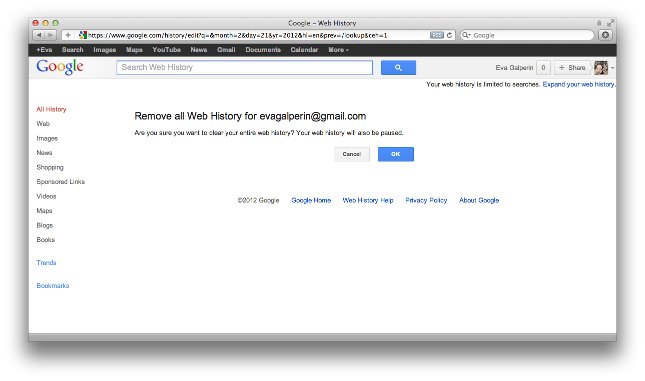
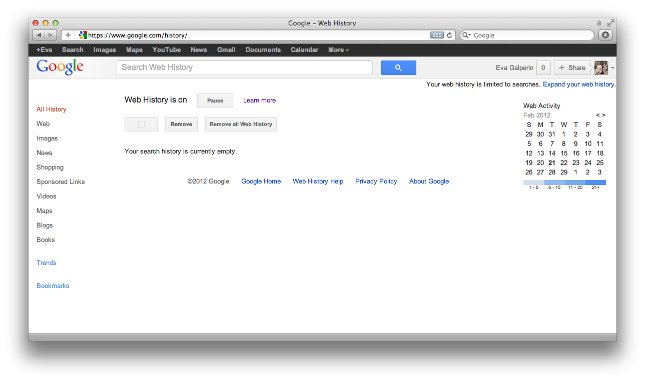
    1. Sign in to your Google account (I.e., Gmail or YouTube) and go to www.google.com/history. You should see something like this:

    2. Click the “remove all web history” button; then click OK.

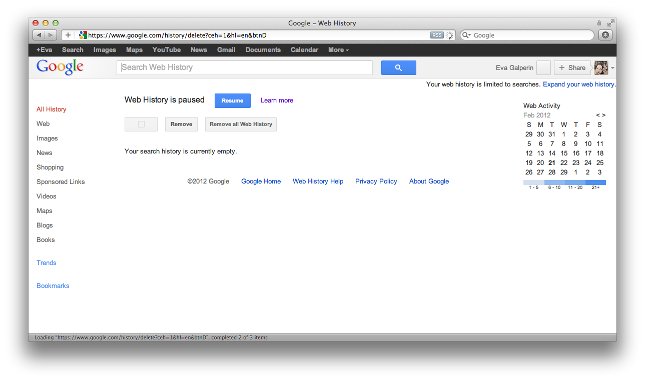
    You should now see something like the following. When you see “Web History is paused,” you have been successful.

    Now keep in mind that this means that until you turn this back on you will not receive specialized or local search returns, and Google will still collect data about where you go online. They will house this more stripped-down data for 18 months, after which they promise to stop keeping it. If you do not opt out of Web History, then Google will keep all of your search history, forever tied to your Google account. When your grandchildren are researching their family tree, they’ll probably have a way to learn that you’ve spent lots of time searching for “recipes using Tabasco,” “dog breeds that don’t shed,” and “winning lotto numbers.”

    Important: I recommend opting out of Web History now, and then again after you have agreed to the new TOS on March 1, 2012. This will clean your search history before the new TOS goes into effect so that all of your data will not auto-upload and be tied to your Google account.

    In my view, this is a good first step; but I recommend doing more.

    Disable the DoubleClick Cookie

    DoubleClick, a Google subsidiary and a very large digital tracking company for Google’s online advertising, will let you opt out of its “cookie” (the little software programs that it plants on your computer to help mark your internet use). To do so, follow these steps

    1. Still logged into your Google account, go to www.google.com/settings/ads/preferences. On the left hand side you will see “Ads on Search. Beneath this you’ll find “Opt Out.”

    2. Click “opt out” and then click the “Opt Out” button.

    Disabling this DoubleClick cookie removes personalized ads and means that Google will collect only generic information, holding it for 18 months.

    Install a Preventive Plug-In

    One last measure you can take is to install the “Advertising Cookie Opt-out Plugin.”  This is a tool that’s available for Firefox, Internet Explorer and Google Chrome browsers. For help and instruction on how to add this to your browser click here: http://www.google.com/ads/preferences/plugin/browsers.html#ieff.

    It is a simple, fast download that will keep DoubleClick at bay. Paste the link above into your browser of choice and follow the directions.

    “Google Paranoia” Is Optional

    I must admit that I am a heavy Google user. I use Gmail every day; Google Chrome is my favorite browser; I have an Android phone that’s never more than two feet away; and I am writing this post in Google Docs right now. I love having all of my accounts under one roof and I do not mind Google following me around to and serve me personalized advertising.  (I never see ads anyway, even on Yahoo or MSN which are littered with advertising and pop-ups. This is because I’ve installed Adblock on my browser. I was quite surprised the first time I looked at Facebook on some else’s computer. It was shocking to see so many ads, and I prefer not to deal with them.)

    In my opinion as a user, Google is doing something useful that I can appreciate. I like the idea of having all of my Google utilities integrated and at my fingertips, and I appreciate having to use only one password. But you may disagree; everyone has their own personal comfort level. Keep in mind, however, that even with evasive measures that stop Google from serving you personalized ads, you will not have stopped Amazon or MSN from tracking you and your searches, and you will not have prevented Google from tracking you. You’ve only kept your search results from being tied to your account forever.

    Our next post will come after March 1, so we’ll be able to see how things have been working. Good luck, and feel free to comment or call between now and then if you have any questions or concerns.